

























































Shortcode element#
The Shortcode element (shortcode, in the Widgets group of the Elements panel) outputs whatever a WordPress shortcode produces: a form, a gallery, a booking calendar, or a block from another plugin.
Using it#
- Add the Shortcode element.
- In the Content tab, type the full shortcode in the Shortcode field, for example
[my_shortcode attr="value"]. - The canvas renders a live preview. If a shortcode cannot be previewed, the canvas shows "Couldn't render this shortcode." and the element still renders on the published page.
An empty shortcode renders nothing on the page.
Permissions
- Only users who can edit posts in WordPress can save a shortcode. For anyone else the field is stored empty.
- With the Role Manager, a role also needs the Shortcodes permission to use this element at all.
- A shortcode's output is trusted, as it would be in a normal WordPress post, so only give shortcode access to people you trust.
Forms added with a shortcode#
For form plugins you can also use the dedicated Form element. If you embed a form with the Shortcode element instead, 1.0.5 makes sure it works properly:
- Forms are never cached. Pages containing a form shortcode skip the page cache, so each visitor gets a fresh security token and the form submits correctly.
- WPForms forms no longer show the "enable JavaScript" notice, because their scripts and styles now load in the page head.
- Contact Form 7 shortcodes automatically load Contact Form 7's own scripts and styles.
- Shortcodes that output their own
<style>or<script>are no longer shown as raw text on the page.
Caching of other shortcodes
- Rendered pages are stored in a one-hour cache. Shortcodes that are not forms are cached with the page, so a shortcode that changes every minute, such as a live counter, can be up to an hour out of date.
- Output that is specific to the logged-in visitor, such as the current user's name, is also excluded from the cache.
Google Maps element#
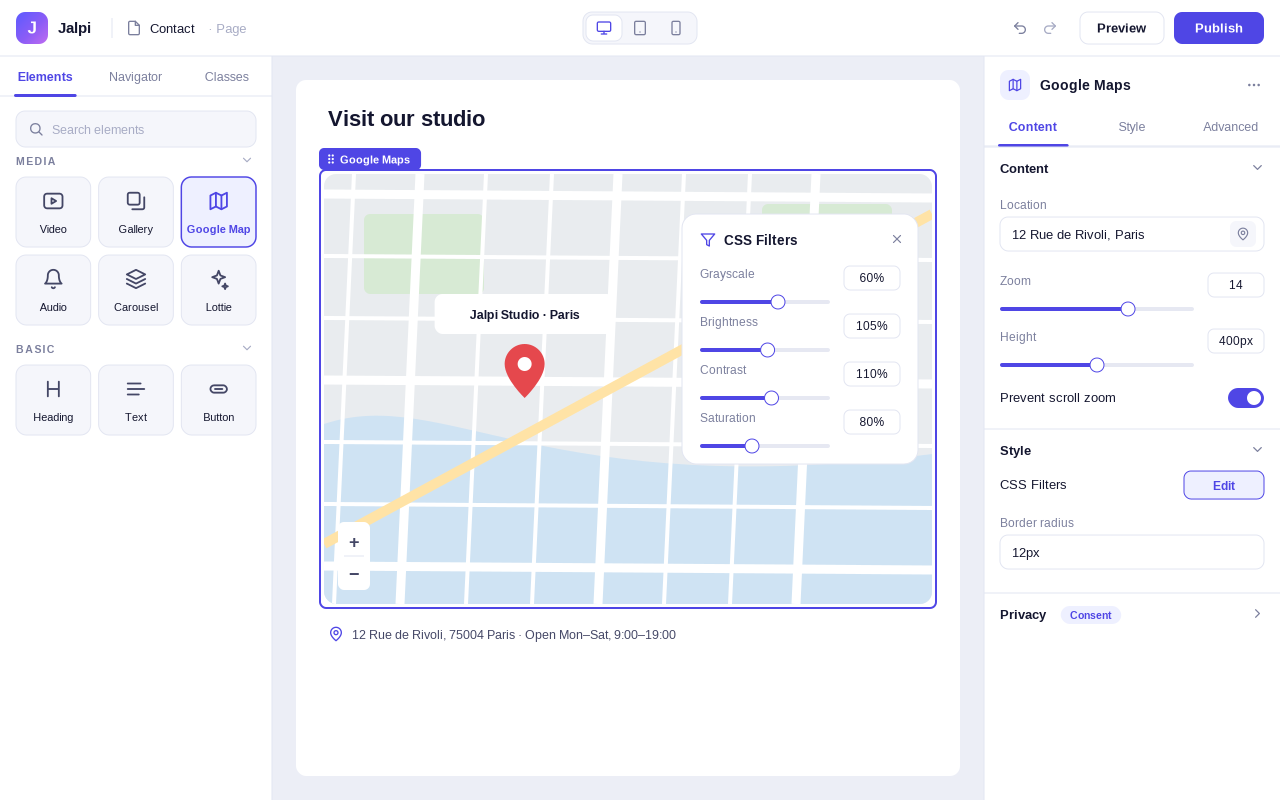
The Google Maps element (maps, in the Media group) embeds a map for an address, with no API key needed.
Content tab#
| Control | Details | Default |
|---|---|---|
| Location | An address or place name, for example "Times Square, New York". If it is empty, nothing is rendered on the page. The canvas shows "Set an address in Properties". | Empty |
| Zoom | 1 – 21 | 14 |
| Height | A responsive control from 40 to 1440, in px, %, vh, em or rem. You can set a different height on tablet and mobile. | 300px |
Style tab: CSS filters#
The Google Maps style group has Normal and Hover tabs with a CSS Filters popup: Blur, Brightness, Contrast, Saturate and Hue. Brightness, contrast and saturate default to 100 and hue to 0. A hover filter fades in smoothly, which makes it easy to show a greyscale map that turns to full colour on hover.
Upgrading from 1.0.3
- Zoom now works. In earlier versions the setting was ignored.
- Height moved from a content field to the responsive Height control. Maps that never set a height now render at 300px. If your map was relying on the old 400px default, set the Height to 400.
Privacy#
The map is Google's keyless embed in an iframe loaded lazily from maps.google.com, so it connects to Google's servers when a visitor views the page. There is no marker, theme or style customisation. Mention it in your privacy policy if you use it. See Requirements for the full list of external services.
Source
Files
includes/elements/class-jalpi-element-shortcode.php includes/elements/class-jalpi-element-maps.php includes/class-jalpi-forms.php includes/class-jalpi-renderer.php
Related#
Last updated: November 2026