


























































Element Manager
Switch off the elements you never use so the editor's Elements panel and search show only what your team needs, and find out which pages use each element before you do.
Jalpi CoreAdministration
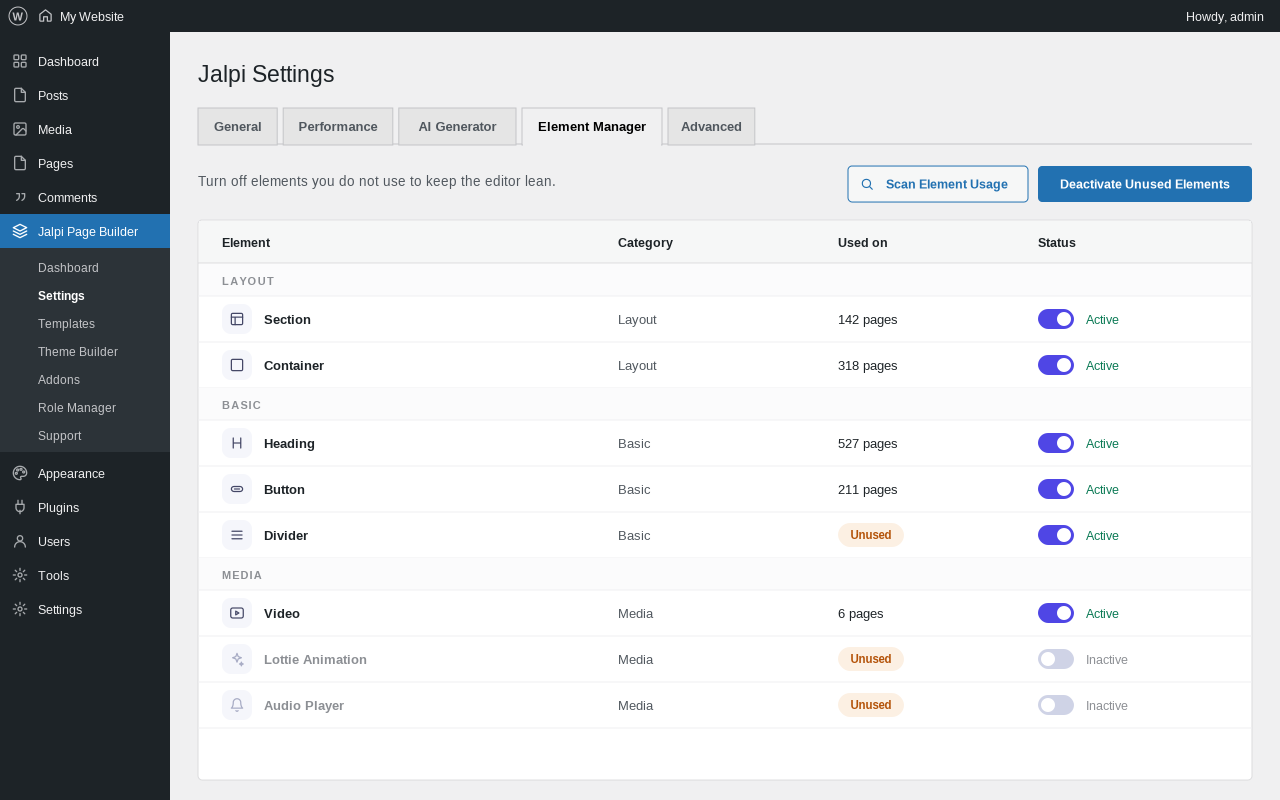
The Element Manager is a tab in Jalpi Page Builder → Settings. Changes apply immediately and are saved as you click, so there is no Save button.
What disabling does#
- A disabled element is hidden from the places where you insert it: the Elements panel and its search, the block picker and the command palette.
- Pages that already contain the element are not affected. They keep working, and render exactly as before.
- New elements added to Jalpi in future updates are enabled by default.
The editor's structure types (Section, Container, Column and Grid) are not listed, so they cannot be switched off.
Element Manager or Role Manager?
- Element Manager hides elements for everyone, as a tidy-up.
- Role Manager restricts elements per role, as access control. See Role Manager.
Using the screen#
- Go to Jalpi Page Builder → Settings and open the Element Manager tab.
- Use Search elements, the category dropdown ("All categories") and the status filter (All, Enabled, Disabled) to find elements.
- Switch an element off or on in its row. The table shows each element's Status, Usage, Category and actions.
- Use Enable All to turn everything back on.
Finding unused elements#
- Click Scan Element Usage. Jalpi scans your built pages ("Scanning…") and fills the Usage column: Not scanned before a scan, Not used, or Used in N pages.
- Click Deactivate Unused Elements to switch off everything the scan found unused in one go.
The usage list for each element shows at most 100 pages. Scan again after you build or delete pages.
Element categories#
| Category | Elements |
|---|---|
| Basic | Heading, Text Editor, Button, Icon, Divider, Spacer, Accordion, Tabs, Counter, Progress Bar, Badge, Icon List, Icon Box |
| Navigation | Menu, Advanced Menu, Breadcrumbs |
| Media | Image, Video, Logo, Google Maps, Gallery, Image Carousel, Image Box |
| Marketing | Alert, Testimonials, Feature Card, Call To Action, Social Icons, Countdown, Flip Box, Star Rating |
| Widgets | Form, HTML, Shortcode |
| Effects | Marquee, Typewriter Text, Shape Divider |
| Social | Social Share, WhatsApp Button, YouTube Gallery, Facebook Feed, Instagram Feed |
| WooCommerce | Products Grid, Product Categories, Single Product |
For developers#
| Item | Details |
|---|---|
| Disabled elements | Stored in the option jalpi_settings_elements. |
| Usage scan results | Stored in the option jalpi_element_usage. |
| Filter | jalpi_element_manager_catalog adjusts the list shown on the screen. |
| AJAX actions | jalpi_em_toggle, jalpi_em_bulk, jalpi_em_scan, jalpi_em_usage. Each checks a nonce and manage_options. |
Source
Files
includes/class-jalpi-elements-manager.php admin/element-manager/element-manager.js admin/editor/src/utils/elementCatalog.ts
Related#
Last updated: November 2026