
🔐 Login / Signup Instructions
If you already have an account:
➡️ Enter your username and password to log in.
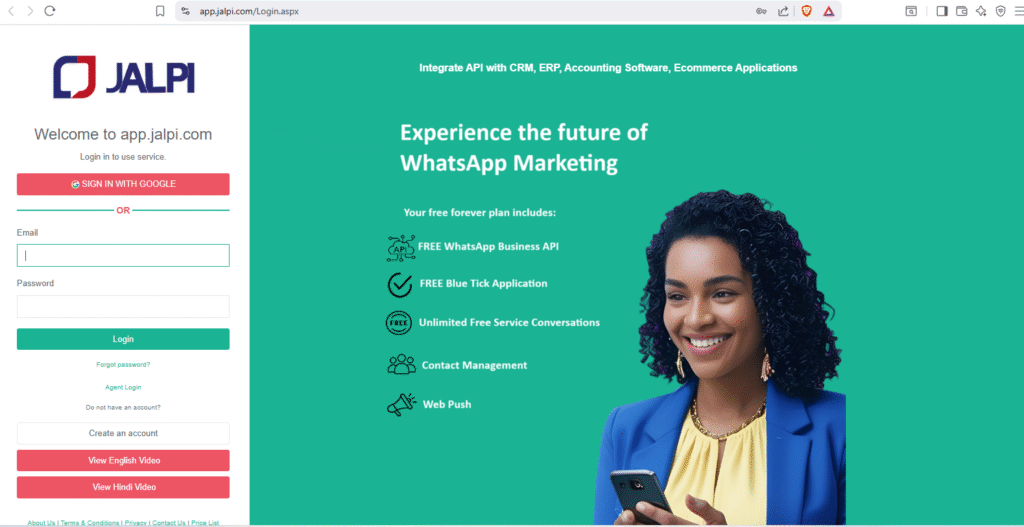
➡️ Click “Sign in with Google” to create a new account instantly.
➡️ Go to Jalpi and register (you will need business details, contact number, email, etc.).
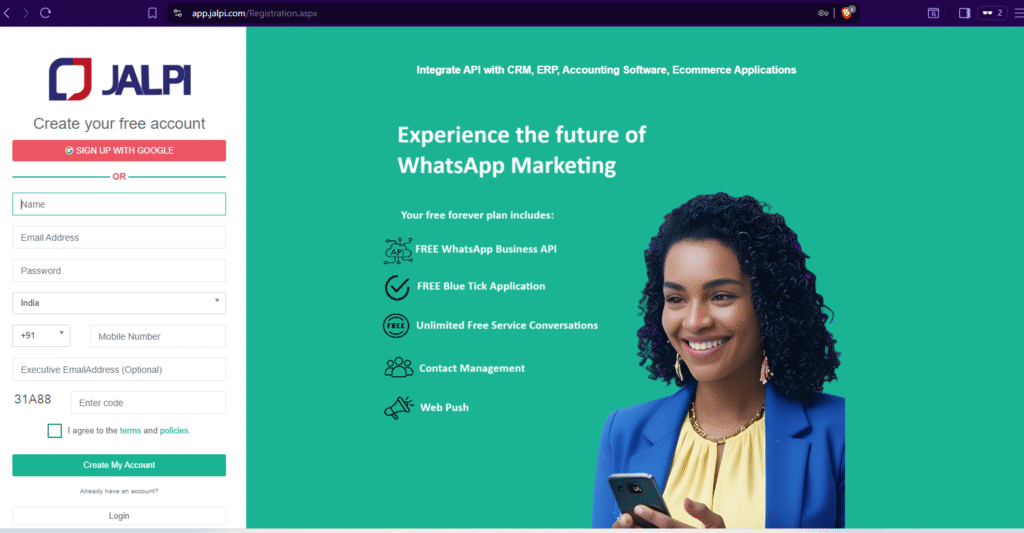
After successfully creating your account:
➡ ️ On the left side menu, click “WhatsApp Instances.”
➡️ This will open the page shown below.
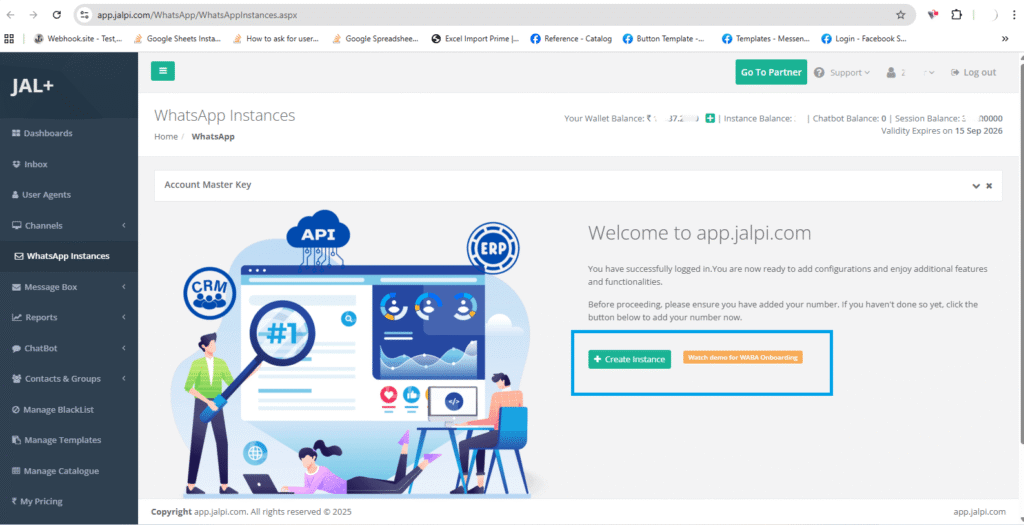
Click Create Instances.
Sign in to Facebook and create or connect a Business Manager.
Complete the Business Verification process.
Once verification is complete, the dashboard/grid will display your registered WABA number.
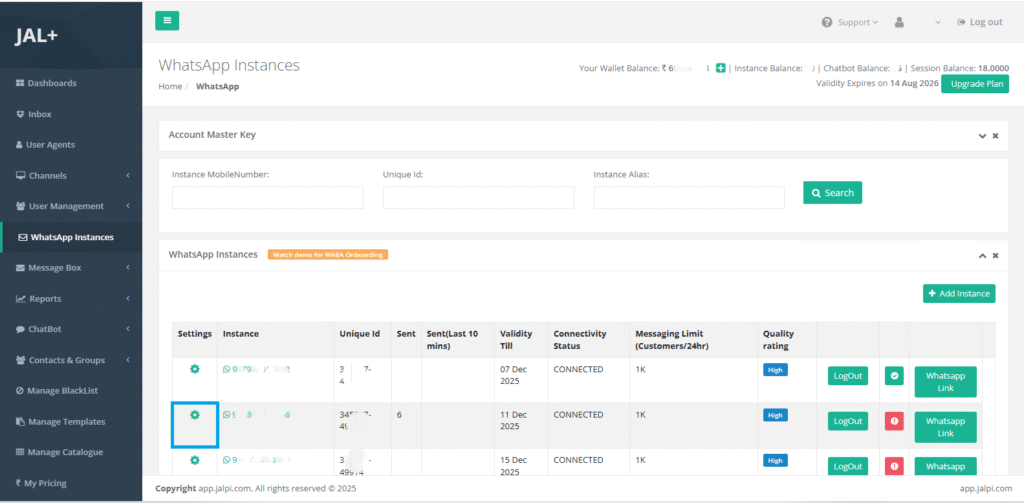
Click the Settings icon.
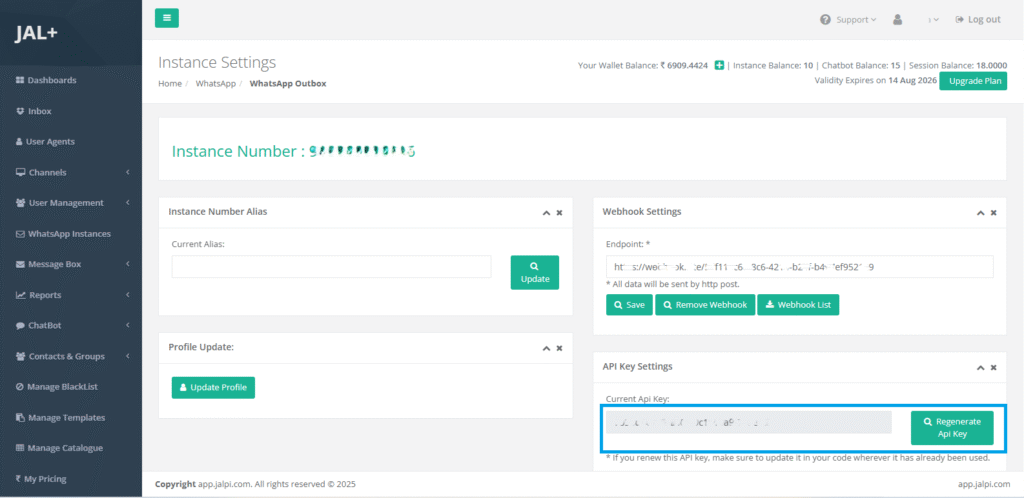
In the popup, go to API Key Settings.
Copy the value under Current API Key:
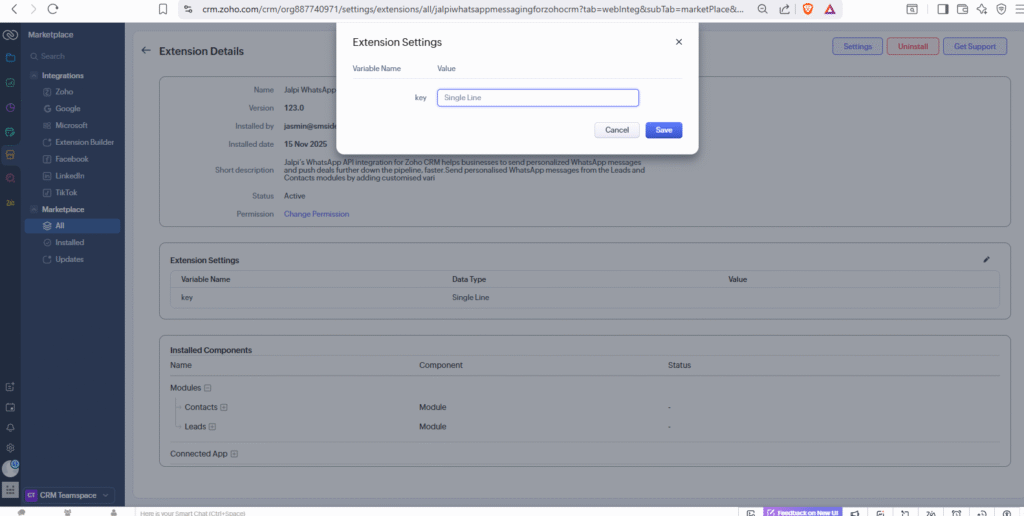
Paste the key into your Zoho extension.
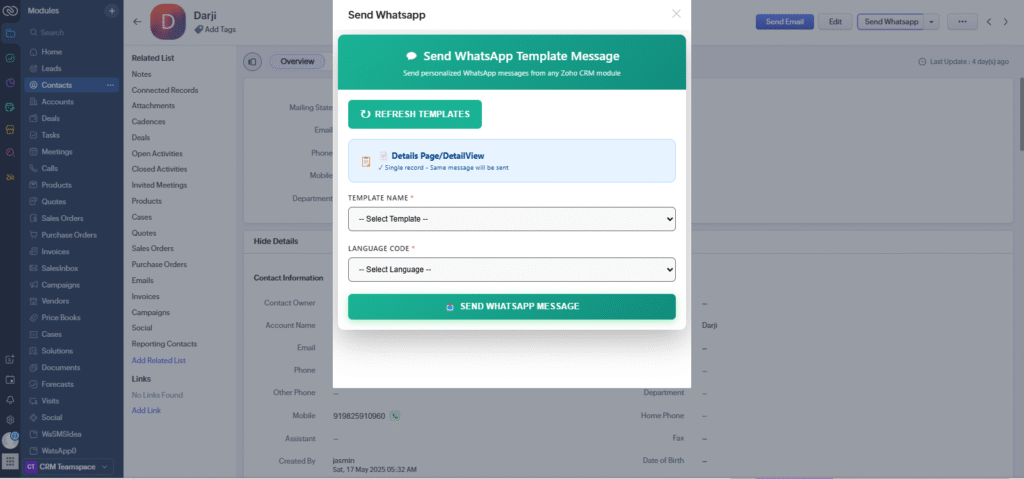
In the Contacts tab, click the Send WhatsApp button on the right. This will open the widget where you can select your desired template, customize the parameters, and send the message.
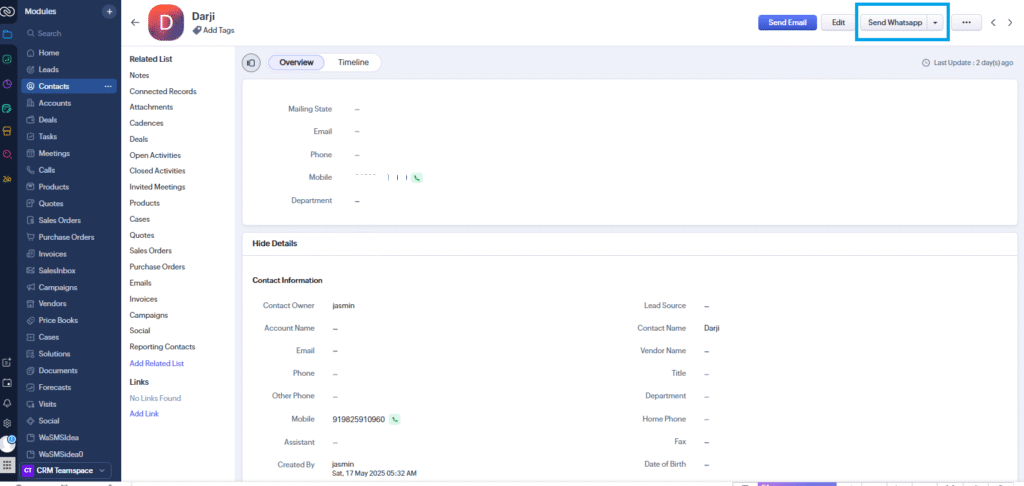
Go to the Contacts tab → Click Contact → click Send WhatsApp on the right → select a template → customize parameters → send.
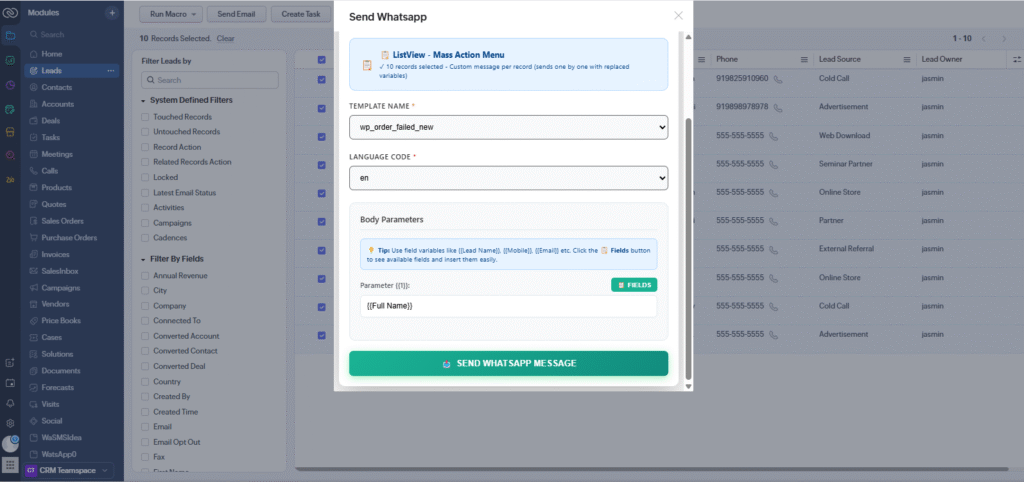
Go to the Lead tab → Select leads → click Send WhatsApp on the top → select a template → customize parameters → send.