

This guide explains how to update your WhatsApp Business Profile for a connected WhatsApp instance in Jalpi. Keeping your business profile up to date helps ensure accurate brand representation and better customer trust.
Step 1: Log in to Your Jalpi Account
- Log in to your Jalpi dashboard
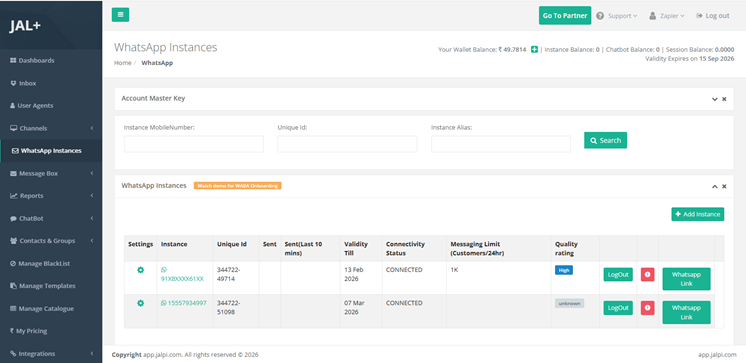
- From the left-side navigation menu, click WhatsApp Instances
Step 2: View WhatsApp Instances
Once you open WhatsApp Instances, the system displays a grid/list of WhatsApp numbers connected to your account.
- Each row represents a WhatsApp instance
- You can manage multiple instances from this page
Step 3: Open Instance Settings
- In the WhatsApp Instances grid, locate the required instance
- Click the Settings (⚙️) icon for that instance
- The system opens the Instance Settings page
Step 4: Instance Settings Page Overview
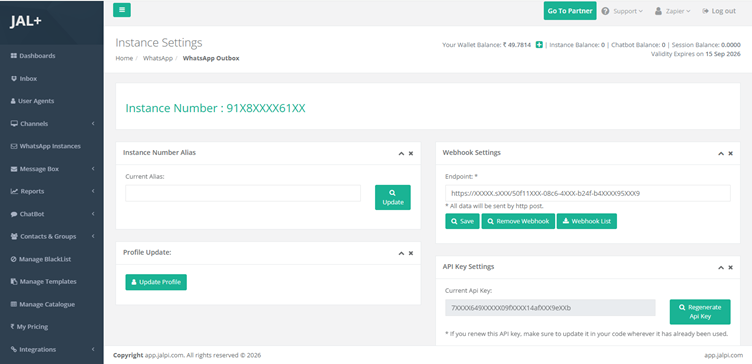
The Instance Settings page allows you to manage both technical configuration and business profile details for the selected WhatsApp instance.
This page includes options such as:
- Webhook Endpoint URL
- API Key
- Integration-related settings
- Business Profile update options
Step 5: Navigate to the Profile Update Section
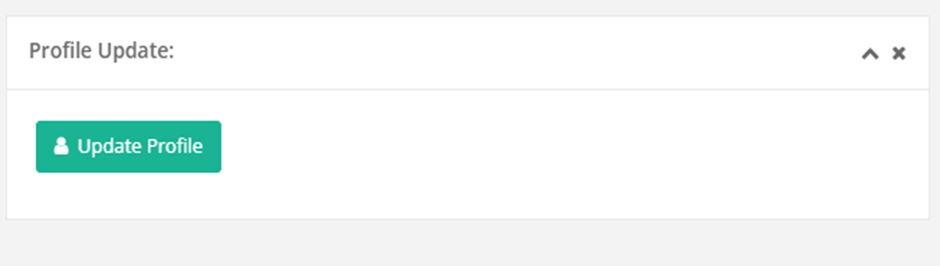
- On the Instance Settings page, navigate to the Profile Update section
- Click the Update Profile button
Step 6: Update Business Profile Details
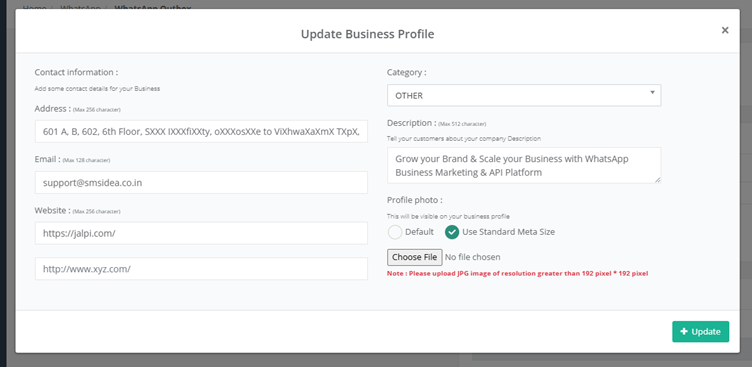
After clicking Update Profile, a popup window appears where you can update your business profile information.
Available Fields
You can update the following details as required:
- Business Address
- Contact Information
- Website (if applicable)
- Business Category
- Business Description
- Profile Photo / Logo upload
📸 Tip:
Ensure your profile photo or logo is clear, professional, and meets WhatsApp’s platform requirements.
Step 7: Save Profile Changes
- Review and update the required fields
- Upload or change the profile photo if needed
- Click Save / Update
Your updated business profile details are submitted successfully.
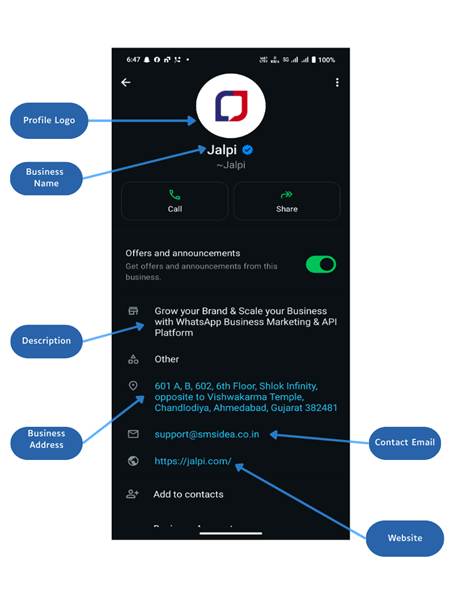
Step 8: Profile Update Reflection on Mobile
Once the update is processed:
- The updated business profile will be visible in the WhatsApp mobile view
- Customers will see the latest business information when viewing your profile
Important Notes
- Some profile updates may take a short time to reflect on WhatsApp
- Ensure all information provided is accurate and compliant with WhatsApp policies
- Frequent unnecessary changes are not recommended